Install on Cursor
Get Veilguard running in Cursor in under a minute. You'll create one config file and restart.
node --versionOpen Cursor Settings → Tools & MCPs
Press Cmd/Ctrl + Shift + J to open Cursor Settings, then click Tools & MCPs in the left sidebar under Agents. You'll see an empty state — no MCP tools installed yet.
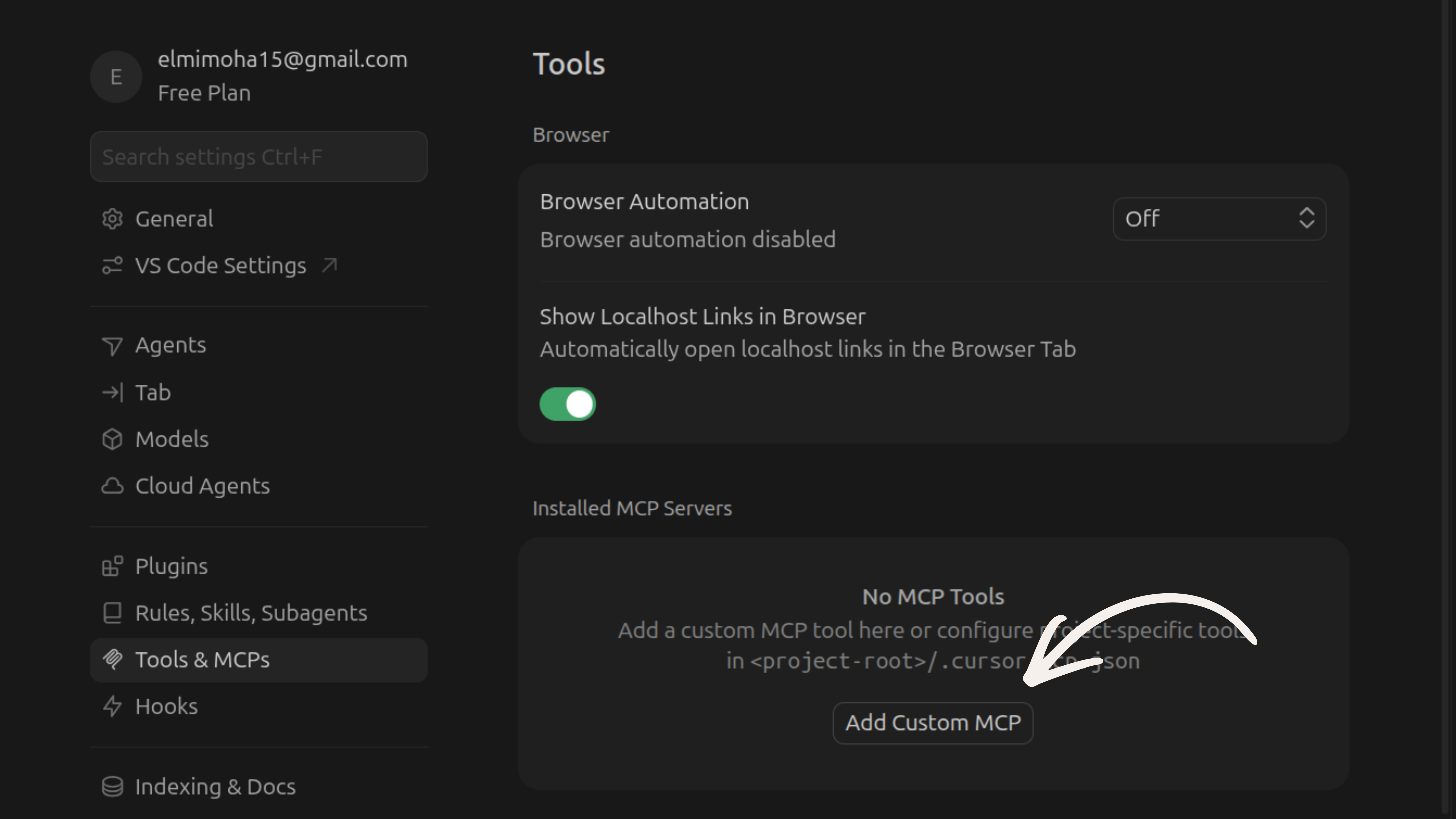
Create .cursor/mcp.json in your project root
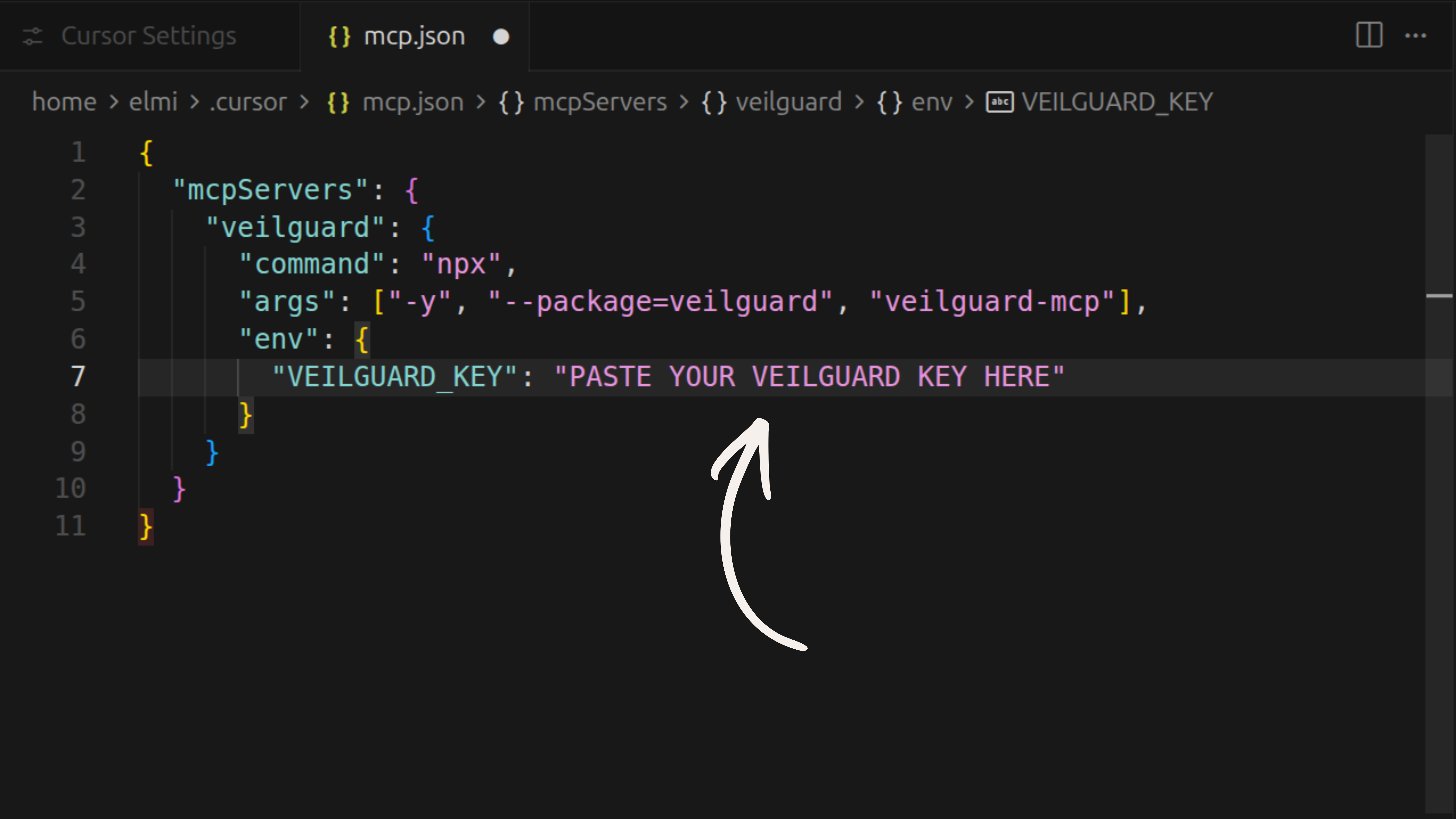
Create the folder .cursor/ in your project root, then create mcp.json inside it. Paste this config:
{
  "mcpServers": {
    "veilguard": {
      "command": "npx",
      "args": ["-y", "--package=veilguard", "veilguard-mcp"],
      "env": {
        "VEILGUARD_KEY": ""
      }
    }
  }
}
Leave VEILGUARD_KEY empty for the free tier. If you already have a Pro key, paste it in now.
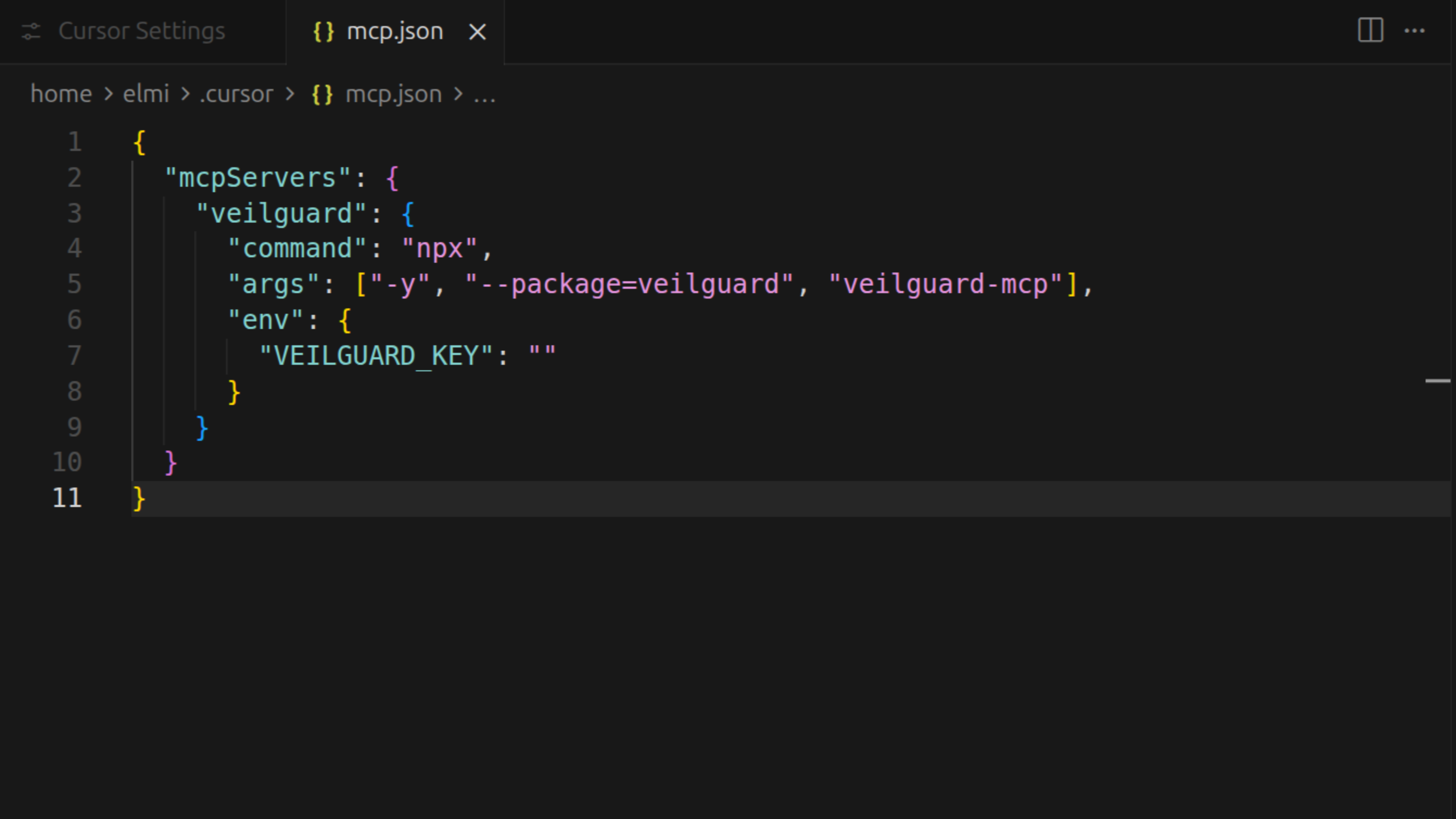
Restart Cursor
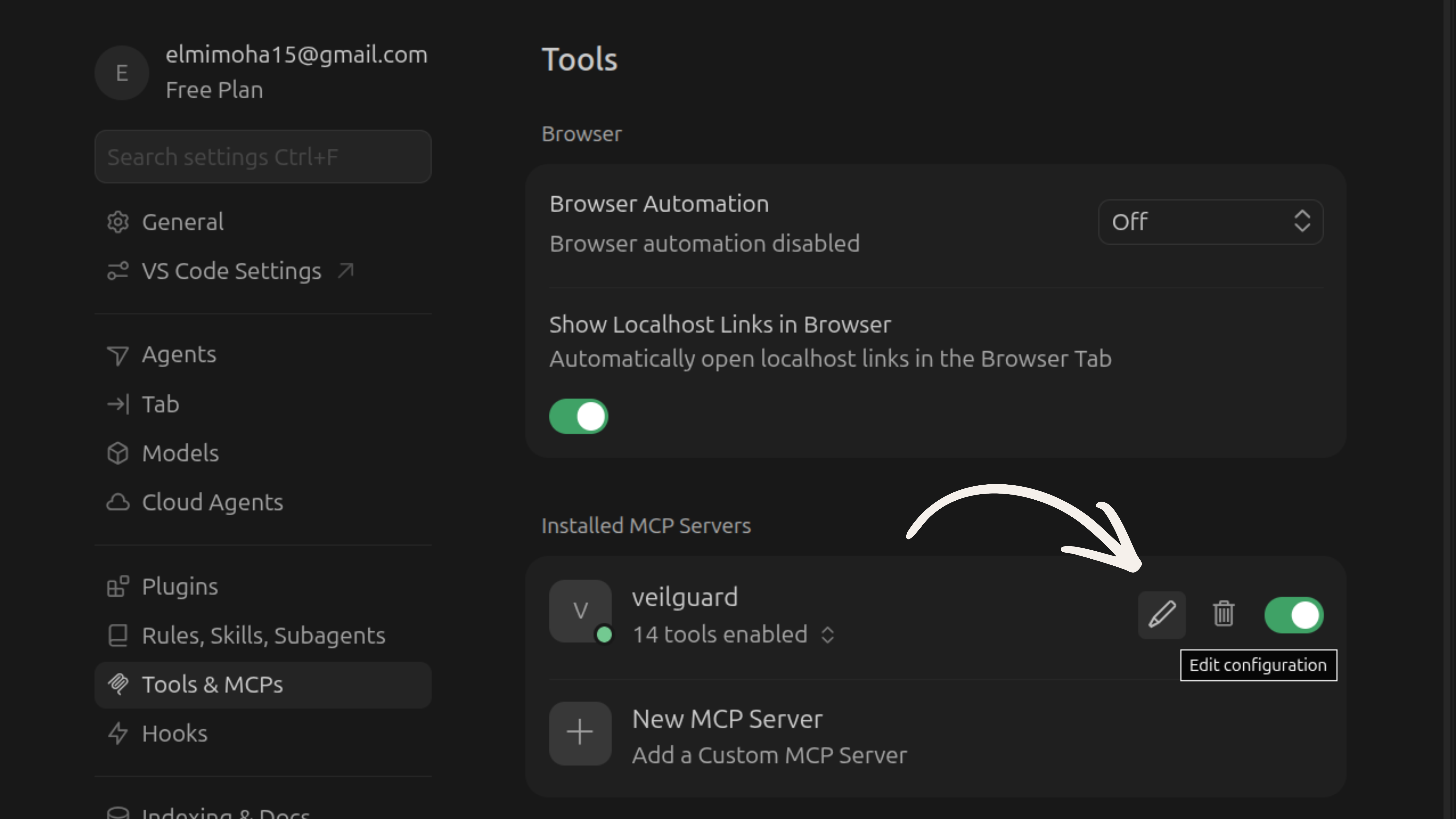
Close and reopen Cursor completely. Then go back to Settings → Tools & MCPs. You should see veilguard listed with a green toggle and 14 tools enabled.
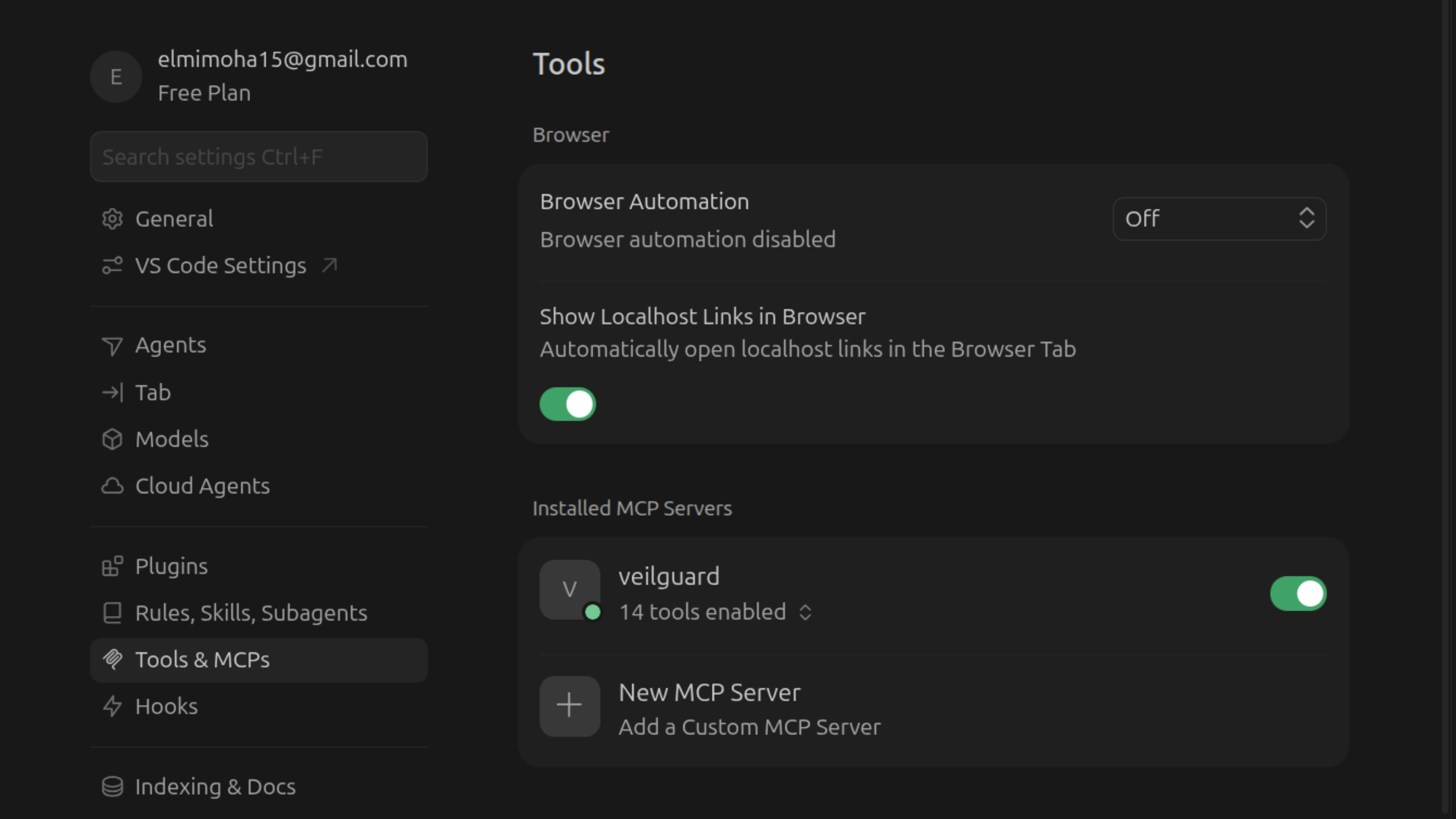
Verify it's working
Open a new Cursor Agent chat and ask: "What Veilguard tools do you have access to?" — it should list 14 security tools. Or try: "Use Veilguard to do a full audit".
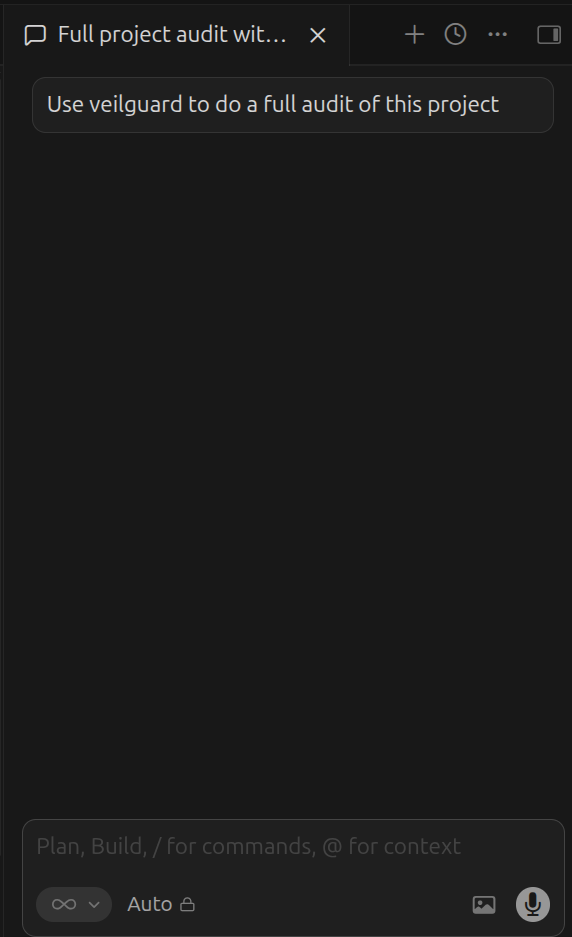
Add your Pro key (optional)
In Settings → Tools & MCPs, hover the veilguard row and click the pencil (edit configuration) icon. This opens .cursor/mcp.json. Replace the empty string on VEILGUARD_KEY with your license key, save, and restart Cursor.
Get a Pro key at veilguard.dev/pro. Keys look like vg_live_xxxxxxxxxxxxxxxxxxxx.
Notes
- •
.cursor/mcp.jsonis project-level — add it to each project you want protected. - •A full IDE restart is required after any config change — a window reload is not enough.
- •For auto-scanning, download the
.cursorrulesfile to your project root. Without it, the tools still work but won't fire automatically.